











Change Management
Go Live Countdown
This countdown organizes every critical task you need to complete before, during, and immediately after go-live. From 90 days out through your first week on Paycor, you’ll know exactly what actions to take and when to take them.
Follow this roadmap across Payroll, HR, Time, and Ancillary Products to ensure your
team stays aligned and your transition goes smoothly.
90+ days from Payroll Go Live
- Review/Update contacts in Guided Activation
- Process any last-minute data cleanups prior to Data Extraction Call for highest level of accuracy in Paycor database build
- Obtain proof of FEIN (SS4, 147-C) and provide to Paycor Implementation Team
- Take “Create demo environment” to get access to a demo to practice in the system prior to getting access.
Log in to the Paycor Training Hub and complete your assigned trainings—look for them in the “Jump Back In” area.
- Apply for missing or new tax IDs as needed.
- Provide Chart of Accounts and Sample Journal Entry. Provide Work Locations.
- Provide list of all physical work location name and addresses to your Payroll Implementation Consultant
Log in to the Paycor Training Hub and complete your assigned trainings—look for them in the “Jump Back In” area.
- If using third-party time vendor without Paycor integration, provide time file export to Time Implementation Consultant.
- Review company handbook for holidays, time, and pay policies to prepare for Time Discovery Call.
Log in to the Paycor Training Hub and complete your assigned trainings—look for them in the “Jump Back In” area.
- Provide emergency contacts in Excel format.
- Review current onboarding documents (PDF/fillable if necessary).
- Provide EEO job titles/categories.
- Determine if an E-Verify/new E-Verify account is needed and work with your HR Specialist for configuration.
Log in to the Paycor Training Hub and complete your assigned trainings—look for them in the “Jump Back In” area.
- Review integrations with key stakeholders — use Paycor marketplace and developer portal.
- General Ledger: Watch for GL Questionnaire email and fill out and provide required documents.
- ACA: Watch for introductory email from your ACA rep letting you know what information to start gathering
- Benefit Advisor: After the Benefit Advisor Kickoff Call provide all requested information and documents to your Implementation Consultant by deadline date to ensure project stays on track
- If applicable, setup system access for your team that will be utilizing APIs via te developer’s portal
60 days from Payroll Go Live
- Develop your Change Management Plan:
- Create your manager training plan to help ensure your teams are prepared for the transition to Paycor. We suggest hosting a training for your managers on topics such as “How to review time dashboard and approve timecards” and “How to review and approve time off requests.” For help developing manager training check out our Best Practices for Developing Training resources.
- Send company communication regarding the switch to Paycor — Download PDF
- Determine appropriate date to send employees’ Paycor registration information. This will give employees access to paystubs, tax documents, and allow them to self-service changes if workflows are enabled.
- If Customer Sandbox is purchased, begin setup and grant access to admins.
- Confirm all tax IDs have been provided to your Paycor Implementation team.
- Provide Retirement Match Policy.
- Provide bank account info.
- Check setup & delivery information.
- Provide custom/specific reports that are needed.
Log in to the Paycor Training Hub and complete your assigned trainings—look for them in the “Jump Back In” area.
- Have your time policy on hand for time discovery call.
Log in to the Paycor Training Hub and complete your assigned trainings—look for them in the “Jump Back In” area.
- Gather custom field data by employee if applicable.
Log in to the Paycor Training Hub and complete your assigned trainings—look for them in the “Jump Back In” area.
- Review the ancillary product purchased in your bundle and establish plan for go-live of each product: Talent Development, Applicant Tracking, Learning Management, Pulse Surveys, Paycor Analytics, Expense Management, etc.
- General Ledger: Your GL Specialist will work with your implementation team to help ensure your payroll system is configured for the desired general ledger output.
- Benefit Advisor: Your Benefit Implementation Consultant will build and configure your Benefit Administrator site and host a Database handoff to review
- Client Is responsible for going into their Sandbox and testing the system to ensure accuracy
30 days from Payroll Go Live
- Go to Report Builder and run a report to validate the employees information in your paycor database:
- Employee Roster (Admin) – report containing all employee profile data. Spot check managers/departments/custom fields.
- If Customer Sandbox is purchased, begin setup and grant access to admins (dependent upon software handoff call).
- Send employees the mobile app download instructions.
Log in to the Paycor Training Hub and complete your assigned trainings—look for them in the “Jump Back In” area.
- Provide PTO handbook or explanation of your company time off policies to your Implementation team.
- Provide court orders for wage garnishments/child support into the Getting Started Portal.
- Provide HSA Direct Deposit routing and account numbers.
Log in to the Paycor Training Hub and complete your assigned trainings—look for them in the “Jump Back In” area.
- If you have physical clocks, confirm that they are working and complete one test punch.
- If using Kiosk or Self Service clocks, create a super user group consisting of 1+ employee and 1+ manager to complete test punches and review time dashboard to validate accuracy of punch settings (rounding rules, meal breaks, etc.).
Log in to the Paycor Training Hub and complete your assigned trainings—look for them in the “Jump Back In” area.
- Review the workflow menu to ensure the appropriate workflows are in place.
- Set up Company News on the homepage
- Add company logo to Paycor
- Review and set up appropriate reminders/notifications if needed
Log in to the Paycor Training Hub and complete your assigned trainings—look for them in the “Jump Back In” area.
- Begin set up of self-paced implementation of ancillary products — Talent Development, Learning Management, Pulse Surveys, Paycor Analytics, Expense Management, etc.
- General Ledger: After database handoff you can expect a GL Mapping document to review, provide feedback, and approve configuration.
- ACA: After database handoff, the Paycor ACA team is ready to complete a walkthrough with you. Locate the ACA questionnaire emailed to you and schedule your walkthrough using the details in the email.
- Benefit Advisor: After you complete the database testing, please provided audit results to your Implementation consultant who will adjust configurations to ensure accuracy and correct set up between Payroll and the Benefits system.
- If applicable, begin end to end testing with APIs via the developers portal.
- Complete Electronic Retirement Questionnaire.
15 days from Payroll Go Live
- Review and update your Paycor Contacts and configure administrator access as needed.
- Test any applicable integrations.
- Perform final data validations using Report Builder
- Run Payroll Reports>Scheduled Deductions
- Run Payroll Reports>Bank/Direct Deposit
- Run Security Reports>User Registration
- Run HR Reports>Employee Roster (Admin)
- Complete a parallel payroll with sample set of employees. Best Practices for completing parallel test.
- Send employees the Paycor Registration instructions.
- Review Registration Page to confirm employee registration.
- Provide PTO balances after last payroll in current system is processed.
- Review Advance Payroll Settings Page
- Register for Training
- Paycor Payroll Level 3 Virtual Instructor-Led Training
- Paycor Payroll: Pay Settings
- Paycor Payroll: Configuring Taxes
- Prepare additional imports you might need (e.g., commissions for the first check or Time file if using other vendor).
- If using third-party Time vendor without an integration to Paycor, work with Time Implementation Consultant to map time file import.
- Third-Party Vendor: Walk through Time file import process with Payroll Implementation Consultant. During this practice, you will learn your Time file map name, the steps to import hours into the paygrid, and how to validate that hours are transferred accurately into the paygrid.
- Under “Company Settings” review and assign reports and notifications.
- Prepare for Balance Entry.
Log in to the Paycor Training Hub and complete your assigned trainings—look for them in the “Jump Back In” area.
- Review Time Dashboard to confirm employees are punching.
- Report Builder – Run Employee Time Profile Report to verify employees’ policy groups, punch profiles, and badge numbers are filled in.
- Send email reminder to managers regarding your company’s deadlines and expectations for approving timecards and time off requests.
- Schedule Time Import Call to test time imports into the paygrid. The purpose of this call is to validate the accuracy of hours, calculation of hours, etc.
- For any new employees added to Paycor after the Time Consultant imports time polices, you will need to assign employees to punch profiles and policy groups.
Log in to the Paycor Training Hub and complete your assigned trainings—look for them in the “Jump Back In” area.
- Maintain employee changes in your Paycor database, such as emergency contacts, address changes, status changes, new hires, etc.
- Start reviewing the Employee Assignment page to ensure all employee information is accurate.
Log in to the Paycor Training Hub and complete your assigned trainings—look for them in the “Jump Back In” area.
- Continue setup of self-paced implementation of ancillary products — Talent Development, Applicant Tracking, Learning Management, Pulse Surveys, Paycor Analytics, Expense Management, etc.
- General Ledger: Process any GL Mapping updates based on feedback received. If applicable, submit GL output to the appropriate internal team for build.
- ACA: Complete ACA Questionnaire that was emailed to you by the Paycor ACA team
- Benefit Advisor: Your Implementation consultant will provide final audit and verification steps for you to review quickly and provide any clarifying data.
- Paycor will import and adjust any last-minute changes in the system and launch your site
7 days from Payroll Go Live
- Review/Update contacts in Guided Activation
- Process any last-minute data cleanups prior to Data Extraction Call for highest level of accuracy in Paycor database build
- Obtain proof of FEIN (SS4, 147-C) and provide to Paycor Implementation Team
- Payroll/HR/Time Admin register for Virtual Led Training by product type (Payroll Level 1 VILT; Time VILT; HR VILT)
- Take “Create demo environment” to get access to a demo to practice in the system prior to getting access.
- If Customer Sandbox is purchased, begin setup and grant access to admins (dependent upon software handoff call).
- Apply for missing or new tax IDs as needed.
- Register for Training – Paycor Payroll Level 1 Virtual Instructor-Led Training
- Provide Chart of Accounts and Sample Journal Entry. Provide Work Locations.
- Provide report of manager and work location assignments.
- If using third-party time vendor without Paycor integration, provide time file export to Time Implementation Consultant.
- Register for Training – Time VILT
- Review company handbook for holidays, time, and pay policies to prepare for Time Discovery Call.
- Provide emergency contacts in Excel format.
- Register for Training – Paycor HR: Working with Forms and Documents.
- Review current onboarding documents (PDF/fillable if necessary).
- Provide EEO job titles/categories.
- Review integrations with key stakeholders — use Paycor marketplace and developer portal.
- General Ledger: Watch for GL Questionnaire email and fill out and provide required documents.
- ACA: Watch for introductory email from your ACA rep letting you know what information to start gathering
Go Live
- Post/Send employees a reminder on how to access paystubs.
Log in to the Paycor Training Hub and complete your assigned trainings—look for them in the “Jump Back In” area.
- Prior to submitting first payroll, review the Pre-Post Payroll Reports on the Review Payroll screen and compare them to the post payroll reports with your prior provider and confirm that earning, deduction, and tax totals are roughly aligned with your previous payroll.
- Review custom equation calculations for any earnings/deductions.
- In Report Builder:
- Direct Deposit Report
Log in to the Paycor Training Hub and complete your assigned trainings—look for them in the “Jump Back In” area.
- Review Timecard Exceptions in the Time Dashboard and missed punches – clean them up.
- Send reminder out to managers to approve timecards by deadline.
- Confirm employees are punching.
Log in to the Paycor Training Hub and complete your assigned trainings—look for them in the “Jump Back In” area.
- Continue dual maintenance.
- Confirm employees are making changes in Paycor and not previous provider.
- Review Workflows – nothing pending approval, nothing stuck, etc.
Log in to the Paycor Training Hub and complete your assigned trainings—look for them in the “Jump Back In” area.
- General Ledger: Within 5 business days after Go Live you can expect to receive a GL Report for review and approval.
- 401(k) team will begin testing 401(k) file after first payroll has posted.
- ACA: Complete ACA Questionnaire that was emailed to you by the Paycor ACA team
- Benefit Advisor: Benefit Advisor is Live – Hand-ff “Go Live Call” is scheduled to go over any additional features and questions
Resources:

Paycor Training

Best Practice Guides

Go Live Checklists
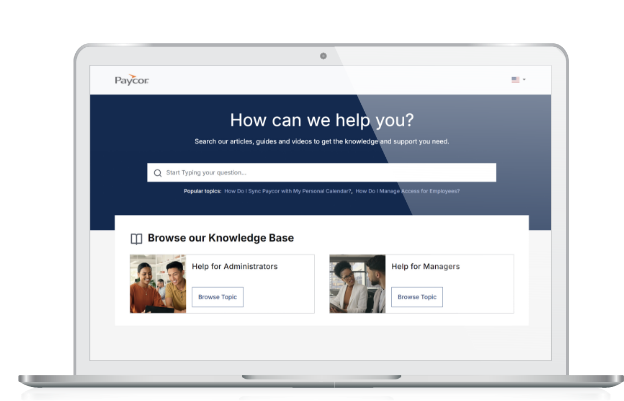
Knowledge Support
Unable to find the answers you need here? Navigate to our expanded knowledge base for additional resources for you and your employees. Most answers to your urgent requests can be found in our Get Help section.
FAQs
Implementation FAQ
How much time will my teams need to budget for this implementation?
The time commitment will vary based on your company’s size, your role in the project, and the specific Paycor products you’ve selected. As a general guideline, we recommend setting aside several hours per week to focus on training, completing assigned tasks, reviewing data for quality, and preparing your organization for change.
What is the difference between a parallel and live payroll?
A parallel payroll is used to do an apples-to-apples comparison between pay information in the prior payroll system and the new Paycor system. It is used to identify any possible trends or issues with earning, deduction, or tax codes that are set up in Paycor and avoid “surprises” when processing the first payroll in Paycor.
My employees have questions about Paycor that I cannot answer, who can help?
This job aid contains answer to frequent employee questions – Paycor Knowledge — Employees Using Paycor Frequently Asked Questions (FAQ). If they still have questions that the project team member can reach out to the Imp team or Support for assistance.
Does Paycor support multiple languages, and how can I switch between them?
Paycor supports seamless language switching to enhance accessibility and user experience.
• Paycor Homepage: You can change your language by navigating to Settings > Language.
• Paycor Knowledge Base: Select your preferred language from the top right corner of the page.
• Change Management Toolkit: A variety of job aids in this toolkit are also available in multiple languages to support diverse teams.
Currently supported languages include English, Spanish, and French.
Technical Issues
If Paycor is down or having issues with products, how are we informed?
Does Paycor perform system maintenance? If so, how will I know when service will be interrupted?
Yes, Paycor performs scheduled system maintenance on a regular basis to launch new product features and address any issues. When this occurs, you will receive an in-app maintenance message that will go out several days/hours prior to the maintenance window that will inform you of the features affected and the window of time maintenance will occur.
We have employees who are having trouble registering for Paycor. What should we do?
If an employee is having trouble logging in, they will need to reach out to the contact on your team responsible for employee assistance. This person should be set up as a Paycor contact in case there are instances where additional troubleshooting is needed. This person will use these tools:
• This job aid contains information for you as an administrator to assist the employee: Paycor Knowledge — Manage Access: Employee Registration
• This job aid contains answer to frequent employee questions – Paycor Knowledge — Employees Using Paycor Frequently Asked Questions (FAQ)
Change Management
Post Go Live
Who do I contact for tax filing errors?
If you receive a tax notice for a time period in which you were processing payroll through Paycor, you must submit the notice to Paycor immediately. This article explains what a tax notice is and how to submit it to Paycor Paycor Knowledge — What Should I Do if I Receive a Tax Notice from the IRS or a State or Local Tax Agency?